Using Separate Browser Profiles to Protect Adult Content Viewing Privacy
When you use a single browser profile for all your online activities, advertising networks and tech corporations can easily connect your sensitive content viewing history to your real-world identity. This connection takes place through tracking cookies, browser cache, history logs, and session tokens stored in a shared data directory. Creating a completely independent browser profile is an effective technical solution to isolate private browsing data, ensuring these activities never mix with your personal or daily work information.
Why Incognito Mode Is Not Enough and Why You Need a Separate Browser Profile
Many users rely on private browsing (Incognito or Private Mode) as an absolute privacy solution. However, this mode presents distinct technical limitations.
Limitations of Private Browsing (Incognito / Private Mode)
Incognito Mode operates on an ephemeral mechanism: all cookies and browsing history are deleted as soon as you close the window. However, this temporary nature creates inconvenience if you want to keep favorite bookmarks or custom configurations without re-entering them from scratch every time.
Furthermore, if your primary browser has extensions allowed to run in private mode, those add-ons can still collect browsing data and transmit it to third-party servers. Additionally, forgetting to close an incognito window or leaving it open for extended periods allows session cookies to accumulate, posing leakage risks.
Data-Layer Isolation Mechanism of Browser Profiles
A browser profile creates a completely isolated environment at the file system level. Each profile possesses a separate data storage directory containing:
- Cookie Jar & Local Storage: All cookies and web app data are entirely isolated from the main profile.
- History & Cache: Images, files, and visit logs are stored in separate directories from personal accounts.
- Autofill & Auto-correct Database: Address suggestions, emails, or saved passwords are not shared.
- Extension List & Settings: A new profile starts on a clean slate, inheriting zero extensions from the old profile.
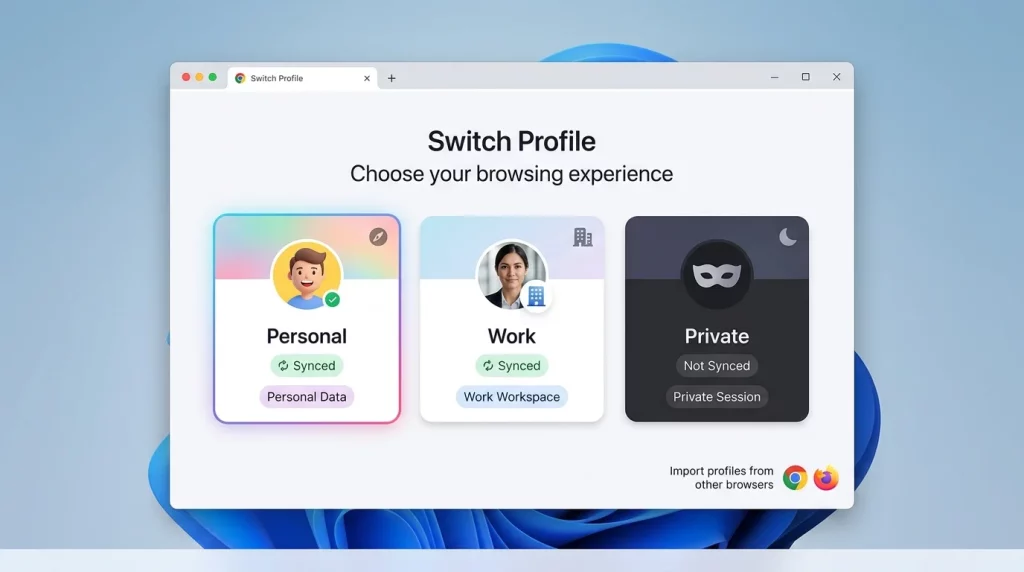
Security Benefits of Using a Dedicated Browser Profile
Using a dedicated, isolated browser profile provides proactive layers of data protection that manual history deletion cannot match.
Complete Isolation of Cookies, Local Storage, and Session Tokens
Cross-site trackers rely on identification parameters stored in cookies and Local Storage to build user behavioral profiles. Viewing sensitive content on an independent profile prevents tracking scripts from linking to social media account cookies (Facebook, Google, LinkedIn) active in your main profile.
Preventing Search History and Autofill Leakage
The most common privacy mishap occurs when typing keywords into the address bar (Omnibox) in front of colleagues or family, where the browser auto-suggests sensitive history. Because Omnibox data is stored separately per profile, your primary profile will contain zero search suggestions or history from the secondary profile.
Disabling Extensions and Sync Features
Browser extensions like password managers, grammar checkers, or shopping assistants often hold permissions to read web page contents. Creating a clean profile without extensions eliminates the risk of your browsing data being logged or leaked through third-party tools.
How to Set Up a Separate Profile on Popular Browsers
Setting up a separate browser profile can be done quickly using your existing web browser without installing complex external software.
Configuring Google Chrome and Microsoft Edge
- Click on the Profile avatar icon in the top-right corner of the browser.
- Select Add at the bottom of the list.
- Choose Continue without an account to avoid linking to any Google or Microsoft account.
- Assign a distinct identifier name (e.g., “Private”) and pick a contrasting color theme to easily distinguish it from your main profile.
- Check the toolbar to ensure no extensions are automatically enabled.
Configuring Mozilla Firefox (about:profiles)
- Type
about:profilesinto the Firefox address bar and press Enter. - Click Create a New Profile and complete the naming wizard.
- Find the newly created profile in the list and click Launch profile in new window.
- This profile operates as a fresh Firefox installation, sharing no data with the original.
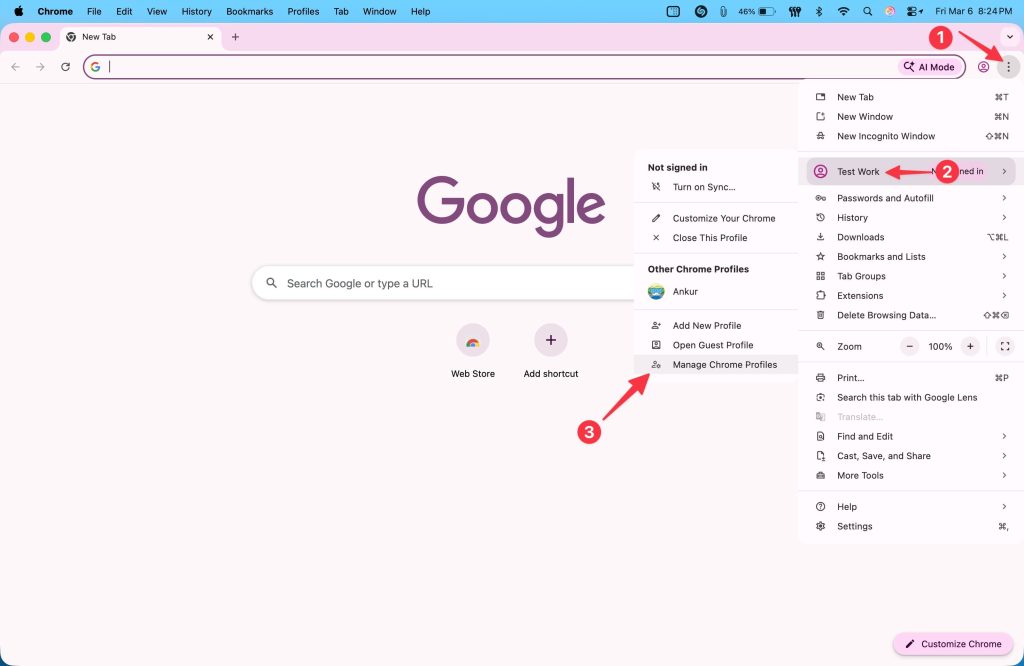
Mandatory Rules to Maintain Isolation
- Never sign into a main account: Absolutely do not sign into Google, Microsoft, Apple, or Firefox Sync accounts inside this private profile.
- Avoid unverified extensions: Keep the profile vanilla, or install only a reputable, trusted ad-blocker if strictly necessary.
- Use distinct visual themes: Apply contrasting color themes for the private profile to instantly recognize which window you are operating in.
Common Mistakes That Ruin Profile Isolation
Although setting up a profile is simple, certain habits can inadvertently break the security boundary between your browsing spaces.
Signing Into Sync Accounts (Google / Microsoft Sync)
The most severe mistake is logging your main email into the new profile to save bookmarks. The moment you log in, the browser triggers account Sync, pulling history, passwords, and cookies from your main profile and destroying isolation.
Sharing Password Managers or Clicking Email Links Directly
Copying passwords from your main profile’s password manager into the private profile can cause automated tools to cache credentials across profiles. Furthermore, clicking links in emails or messaging apps within your main profile automatically opens them in your default profile, leaking tracking parameters.
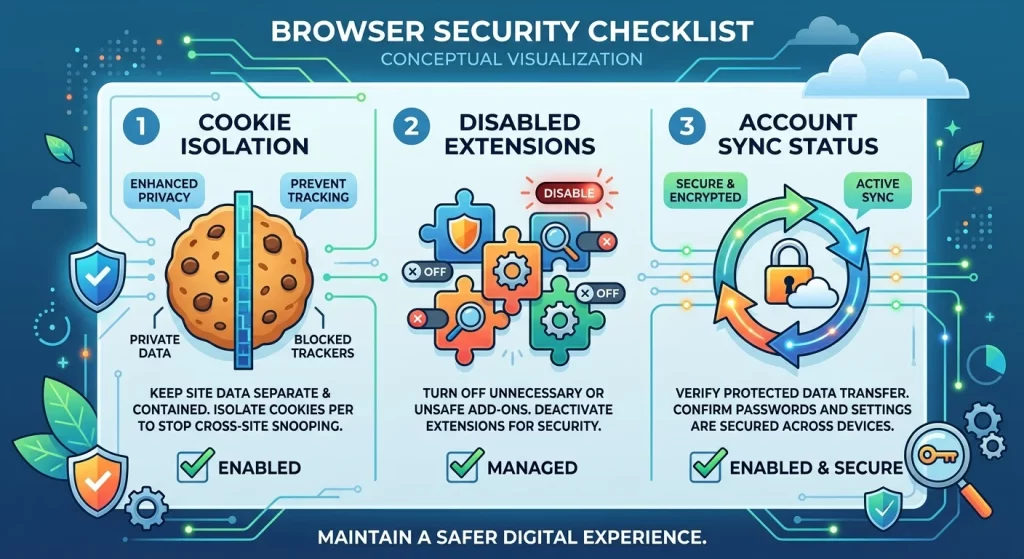
Safety Inspection Checklist Before and After Every Session
To ensure absolute data security, apply this quick inspection routine before and after using your private profile.
| Inspection Item (Checklist) | Action Required | Safety Signal |
|---|---|---|
| Profile Name & Avatar | Look at top-right corner of the browser | Displays private profile name, no personal account avatar |
| Extension Toolbar | Inspect icon list next to address bar | No unfamiliar extension icons or personal password managers |
| Omnibox Suggestions | Type initial characters into address bar | No search suggestions from personal or work history |
| Window Closure Status | After completing the session | Completely close all private profile windows, no background processes |
Frequently Asked Questions (FAQ)
Is using a separate Browser Profile better than Incognito/Private Mode?
A separate profile offers flexibility if you want to maintain isolated bookmarks or customized settings without losing them when closing windows. Both methods have distinct values, but dedicated profiles excel at preventing data leakage through extensions and account sync.
Should I install a VPN or Ad-Blocker extension on this private profile?
If an ad-blocker or VPN is required, install only reputable open-source tools (such as uBlock Origin) directly within that private profile. Never enable extension sharing from the main profile.
What should I do if I accidentally logged into a Google Account on the private profile?
Completely remove that profile via the Profile Manager. Then, create a new profile from scratch and select the option to continue without logging in.
Can my Internet Service Provider (ISP) or Wi-Fi administrator see my browsing history when using a separate Profile?
Yes. A browser profile only isolates local device data (history, cookies, cache) and does not encrypt network traffic. Your ISP or Wi-Fi network admin can still view domain names you visit via DNS queries. To hide network traffic, combine the profile with a Virtual Private Network (VPN) or Encrypted DNS (DoH).